Description
✅ Convert numbers to words directly in Excel
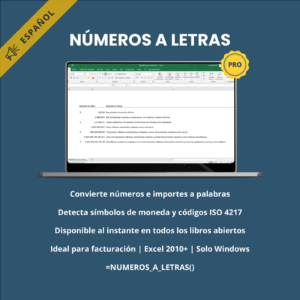
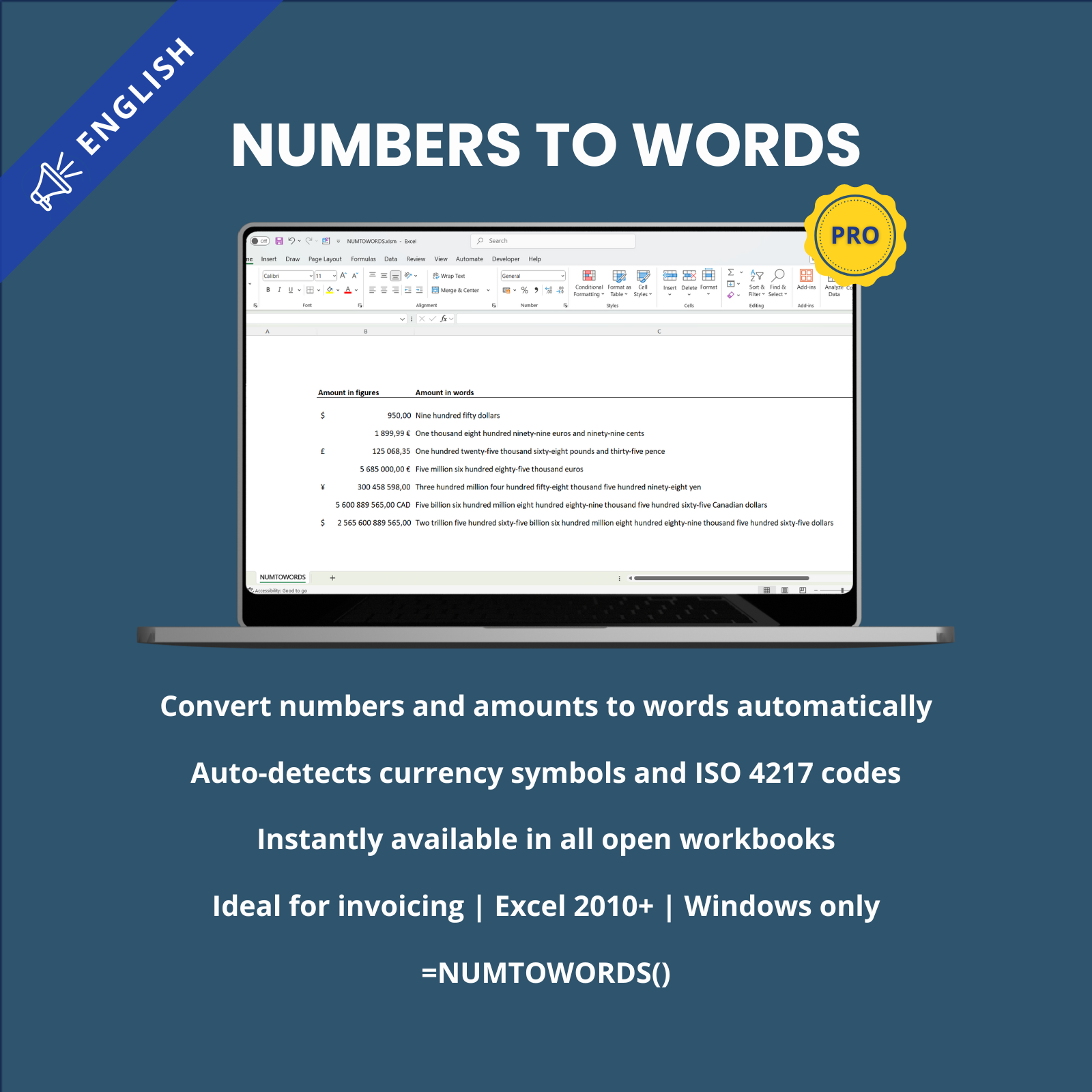
NumToWords is an Excel Add-In that converts numbers and amounts into full written text with clear and grammatically consistent results.
It is an ideal Excel tool for your invoices, contracts, accounting documents, checks, quotations and financial reports.
It automatically detects currencies and cell formats, helping you produce clean, professional and reliable results every time.
The result is returned in English, regardless of the language of your Microsoft Excel interface.
👥 Who this Excel Add-In is for
- Accountants, bookkeepers, auditors and finance departments
- Business owners, SMEs, freelancers and independent professionals
- Administrative, purchasing and invoicing departments
- Cost consultants, engineering offices and construction professionals
- Anyone using Excel to prepare invoices, quotations, contracts, checks or financial documents
⚙️ Main features
🧮 Built-in worksheet function
=NUMTOWORDS(A1)Works directly in Excel cells like a native worksheet function.
💵 Automatic currency detection
The Add-In automatically recognizes currency symbols and ISO 4217 currency codes for major world currencies, without manual configuration.
This feature enables instant detection of the currency used in the Excel cell, ensuring the correct conversion into written words.
View the full list of recognized symbols and codes
- $ — US dollar
- € — euro
- ¥ — Japanese yen
- £ — pound sterling
- C$ — Canadian dollar
- CHF — Swiss franc
- HK$ — Hong Kong dollar
- NZ$ — New Zealand dollar
- S$ — Singapore dollar
- R$ — Brazilian real
- Mex$ — Mexican peso
- R — South African rand
- Rp — Indonesian rupiah
- RM — Malaysian ringgit
- NT$ — Taiwan dollar
- zl — Polish zloty
- Ft — Hungarian forint
- Kc — Czech koruna
- E£ — Egyptian pound
- COL$ — Colombian peso
- KSh — Kenyan shilling
- AED — UAE dirham
- AFN — Afghan afghani
- ALL — Albanian lek
- AMD — Armenian dram
- ANG — Netherlands Antillean guilder
- AOA — Angolan kwanza
- ARS — Argentine peso
- AUD — Australian dollar
- AWG — Aruban florin
- AZN — Azerbaijani manat
- BAM — Bosnia-Herzegovina convertible mark
- BBD — Barbadian dollar
- BDT — Bangladeshi taka
- BGN — Bulgarian lev
- BHD — Bahraini dinar
- BIF — Burundian franc
- BMD — Bermudian dollar
- BND — Brunei dollar
- BOB — Bolivian boliviano
- BRL — Brazilian real
- BSD — Bahamian dollar
- BTN — Bhutanese ngultrum
- BWP — Botswanan pula
- BYN — Belarusian ruble
- BZD — Belize dollar
- CAD — Canadian dollar
- CDF — Congolese franc
- CLP — Chilean peso
- CNY — Chinese yuan
- COP — Colombian peso
- CRC — Costa Rican colón
- CUP — Cuban peso
- CVE — Cape Verdean escudo
- CZK — Czech koruna
- DJF — Djiboutian franc
- DKK — Danish krone
- DOP — Dominican peso
- DZD — Algerian dinar
- EGP — Egyptian pound
- ERN — Eritrean nakfa
- ETB — Ethiopian birr
- EUR — euro
- FJD — Fijian dollar
- GBP — pound sterling
- GEL — Georgian lari
- GHS — Ghanaian cedi
- GIP — Gibraltar pound
- GMD — Gambian dalasi
- GNF — Guinean franc
- GTQ — Guatemalan quetzal
- GYD — Guyanese dollar
- HKD — Hong Kong dollar
- HNL — Honduran lempira
- HTG — Haitian gourde
- HUF — Hungarian forint
- IDR — Indonesian rupiah
- ILS — Israeli new shekel
- INR — Indian rupee
- IQD — Iraqi dinar
- IRR — Iranian rial
- ISK — Icelandic krona
- JMD — Jamaican dollar
- JOD — Jordanian dinar
- JPY — Japanese yen
- KES — Kenyan shilling
- KGS — Kyrgyzstani som
- KHR — Cambodian riel
- KMF — Comorian franc
- KPW — North Korean won
- KRW — South Korean won
- KWD — Kuwaiti dinar
- KYD — Cayman Islands dollar
- KZT — Kazakhstani tenge
- LAK — Lao kip
- LBP — Lebanese pound
- LKR — Sri Lankan rupee
- LRD — Liberian dollar
- LSL — Lesotho loti
- LYD — Libyan dinar
- MAD — Moroccan dirham
- MDL — Moldovan leu
- MGA — Malagasy ariary
- MKD — Macedonian denar
- MMK — Myanmar kyat
- MNT — Mongolian tögrög
- MOP — Macanese pataca
- MRU — Mauritanian ouguiya
- MUR — Mauritian rupee
- MVR — Maldivian rufiyaa
- MWK — Malawian kwacha
- MXN — Mexican peso
- MYR — Malaysian ringgit
- MZN — Mozambican metical
- NAD — Namibian dollar
- NGN — Nigerian naira
- NIO — Nicaraguan córdoba
- NOK — Norwegian krone
- NPR — Nepalese rupee
- NZD — New Zealand dollar
- OMR — Omani rial
- PAB — Panamanian balboa
- PEN — Peruvian sol
- PGK — Papua New Guinean kina
- PHP — Philippine peso
- PKR — Pakistani rupee
- PLN — Polish zloty
- PYG — Paraguayan guaraní
- QAR — Qatari riyal
- RON — Romanian leu
- RSD — Serbian dinar
- RUB — Russian ruble
- RWF — Rwandan franc
- SAR — Saudi riyal
- SBD — Solomon Islands dollar
- SCR — Seychellois rupee
- SDG — Sudanese pound
- SEK — Swedish krona
- SGD — Singapore dollar
- SHP — Saint Helena pound
- SLL — Sierra Leonean leone
- SOS — Somali shilling
- SRD — Surinamese dollar
- SSP — South Sudanese pound
- STN — São Tomé and Príncipe dobra
- SYP — Syrian pound
- SZL — Eswatini lilangeni
- THB — Thai baht
- TJS — Tajikistani somoni
- TMT — Turkmenistani manat
- TND — Tunisian dinar
- TOP — Tongan paʻanga
- TRY — Turkish lira
- TTD — Trinidad and Tobago dollar
- TWD — Taiwan dollar
- TZS — Tanzanian shilling
- UAH — Ukrainian hryvnia
- UGX — Ugandan shilling
- USD — US dollar
- UYU — Uruguayan peso
- UZS — Uzbekistani som
- VES — Venezuelan sovereign bolívar
- VND — Vietnamese đồng
- VUV — Vanuatu vatu
- WST — Samoan tālā
- XAF — Central African CFA franc
- XCD — East Caribbean dollar
- XOF — West African CFA franc
- XPF — CFP franc
- YER — Yemeni rial
- ZAR — South African rand
- ZMW — Zambian kwacha
🔤 Simple and customizable
Simple and fast formula:
=NUMTOWORDS(A1)Formula with advanced customization:
=NUMTOWORDS(A1,"Currency","Sub-currency",International,Style)Available arguments:
- Currency – e.g. “euro”, “dollar”, “dirhams”
- Sub-currency – e.g. “cent”, “cents”, “centime”
- International: « 1 » → US dollars / « 0 » → dollars
- Style: « default » / « check »
Examples:
Number without formatting
- Cell content: 5,135,869.60
- Function syntax:
=NUMTOWORDS(A4) - Result: Five million one hundred thirty-five thousand eight hundred sixty-nine point sixty
Number with currency – euros
- Cell content: € 5,135,869.60
- Function syntax:
=NUMTOWORDS(A6) - Result: Five million one hundred thirty-five thousand eight hundred sixty-nine euros and sixty cents
Number with currency – dollars
- Cell content: $ 5,135,869.60
- Function syntax:
=NUMTOWORDS(A8) - Result: Five million one hundred thirty-five thousand eight hundred sixty-nine dollars and sixty cents
Number with currency and country name – US dollars
- Cell content: $ 5,135,869.60
- Function syntax:
=NUMTOWORDS(A9;;;1) - Result: Five million one hundred thirty-five thousand eight hundred sixty-nine US dollars and sixty cents
Number with currency – dollars – Check style
- Cell content: $ 5,135,869.60
- Function syntax:
=NUMTOWORDS(A10;;;;1) - Result: Five million one hundred thirty-five thousand eight hundred sixty-nine dollars and 60/100
Number with currency – Moroccan dirhams
- Cell content: 5,135,869.60 MAD
- Function syntax:
=NUMTOWORDS(A6) - Result: Five million one hundred thirty-five thousand eight hundred sixty-nine dirhams and sixty centimes
Number without formatting – forced dirhams and centimes
- Cell content: 5,135,869.60
- Function syntax:
=NUMTOWORDS(A5;"dirhams";"centimes") - Result: Five million one hundred thirty-five thousand eight hundred sixty-nine dirhams and sixty centimes
Number with unsupported currency symbol or ID – Ex : forced pounds and pence
- Cell content: 5,135,869.60 XYZ
- Function syntax:
=NUMTOWORDS(B11;"pounds";"pence") - Result: Five million one hundred thirty-five thousand eight hundred sixty-nine pounds and sixty pence
🔐 Personalized license and final version delivery
After your purchase, you receive a VBA license preparation file.
This file is not yet the final personalized application: it is only used to generate the information required to create your license.
This step is simple, fast and does not require any technical knowledge.
When launched, a form asks you to enter the information related to your order:
- First name
- Last name
- License holder name
- Order number
The form also displays a technical identifier linked to the computer on which the application will be used.
This identifier is used to associate the license with the relevant workstation.
After checking the entered information, you click the dedicated button in the form to generate a license request text file.
This file must then be returned to us by email.
After receiving this file, we prepare and send you the final version of the application, personalized with your license, within 24 business hours.
Support is provided if you encounter any difficulty during this step.
This process helps protect the software against unauthorized copies, while ensuring that the delivered license matches your order and your computer.
📦 What is included
The product is delivered in two steps in order to create a personalized license.
- 📁 First delivery: VBA license preparation file, to be run on the computer intended to use the application.
- 📁 Final delivery: sent within 24 business hours after receiving the license request file.
- 📊 Personalized Excel Add-In with your license.
- 📄 Clear illustrated PDF installation guide.
- 💬 Direct support: fast and personalized assistance, provided during license preparation and after final version delivery.
⚙️ How it works
After receiving the final delivery files, follow the installation guide.
Once installed, the Add-In becomes available directly in any open Excel workbook using a standard formula:
=NUMTOWORDS(A1)The formula instantly converts the numeric value of the cell into written text.
No more transcription errors in your invoices, checks or financial documents!
💻 Compatibility
- ✅ Microsoft Excel Desktop, on Windows 2010 or later
- ❌ Not compatible with Excel for Mac or Excel Online
💬 Refund policy
💯 100% satisfaction guarantee.
Refund requests are accepted within 14 days of purchase.
If the Add-In does not work as described, contact us within 14 days.
After support, if the issue persists, a full refund will be issued — without complication.
⚠️ Important technical information
- The Add-In is based on VBA — Visual Basic for Applications.
- Macros must be enabled for the Add-In to work correctly.
- Always check the results before professional, accounting or financial use.
🛑 Legal disclaimer
NumToWords is a Microsoft Excel Add-In intended for professional or personal use, running under Microsoft Excel for Windows.
This software has been designed and tested with great care to ensure reliable, accurate and expected operation.
Particular attention has been paid to code quality and processing robustness.
However, due to the diversity of system configurations, Excel versions and usage contexts, anomalies or side effects may exceptionally occur.
The software is provided “as is”, without any warranty, express or implied, including but not limited to performance, reliability or fitness for a particular purpose.
Accordingly, the publisher shall not be held liable for any direct or indirect damage, including but not limited to data loss, file corruption or business interruption related to its use.